How to Upload a Document
This feature is rolling out in Spring 2026. Until then, please hand documents to a board representative at the monthly meeting, or email them to the association office.
From time to time, the association office may ask you to send in a document. This page shows you how to upload it through the member website instead of mailing a paper copy or stopping by the office.
What you might upload
- Beneficiary form for your $100,000 life insurance benefit
- Proof of insurance or a certificate from your building
- A scanned copy of a meeting attendance sheet
- Any form the board asks you to return
What files work
You can upload files in these formats:
- PDF — best for forms and scanned documents
- JPG or PNG — good for a photo taken with your phone
Files should be smaller than 10 megabytes. Most phone photos and single-page PDFs are well under that. If you have a very large scan, ask the office to tell you how to send it.
Steps
- Log in at portal.metropolitanbmny.com. If you need help, see How to Log In.
- On your dashboard, click Documents in the main menu.
- Click the Upload Document button.
- Choose the file from your phone or computer.
- Pick the document type from the list (for example, "Beneficiary Form").
- Click Upload.
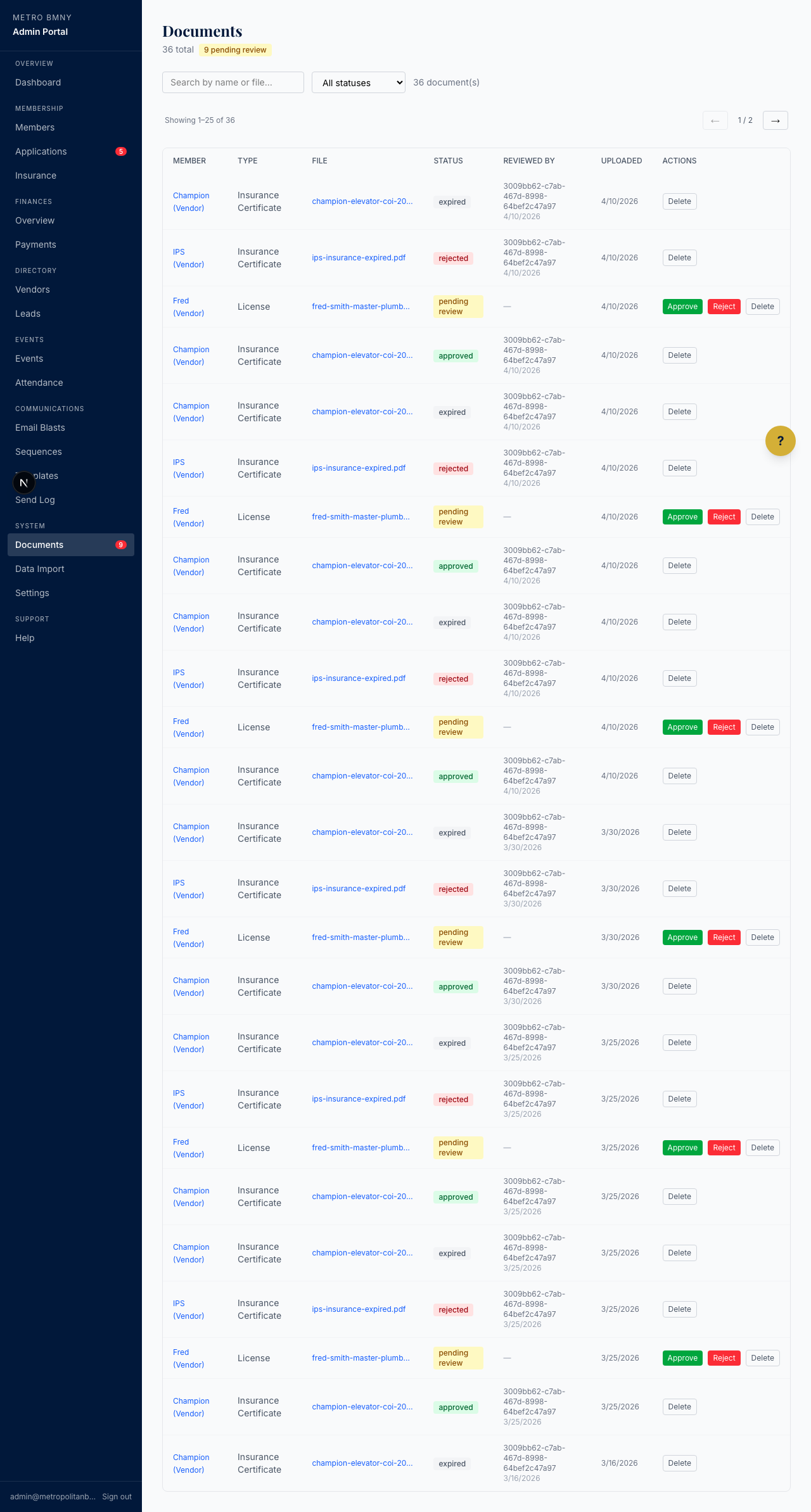
How to know it worked
Once your file finishes uploading, you will see a green confirmation message and the document will appear in your list of uploaded files. If something goes wrong, you will see a red message explaining what to fix. The most common issue is a file that is too big or the wrong type.
What happens next
The association office will review your document. Depending on what you sent in, one of two things will happen:
- If it is a form that needs board review (like a beneficiary form), you will get an email when it has been approved
- If it is a simple file like an insurance certificate, it will be filed with your record right away
You do not need to send the original paper copy after you upload. The digital version is enough for our records.
If you need to update your contact info before uploading, see How to Update Your Profile.